
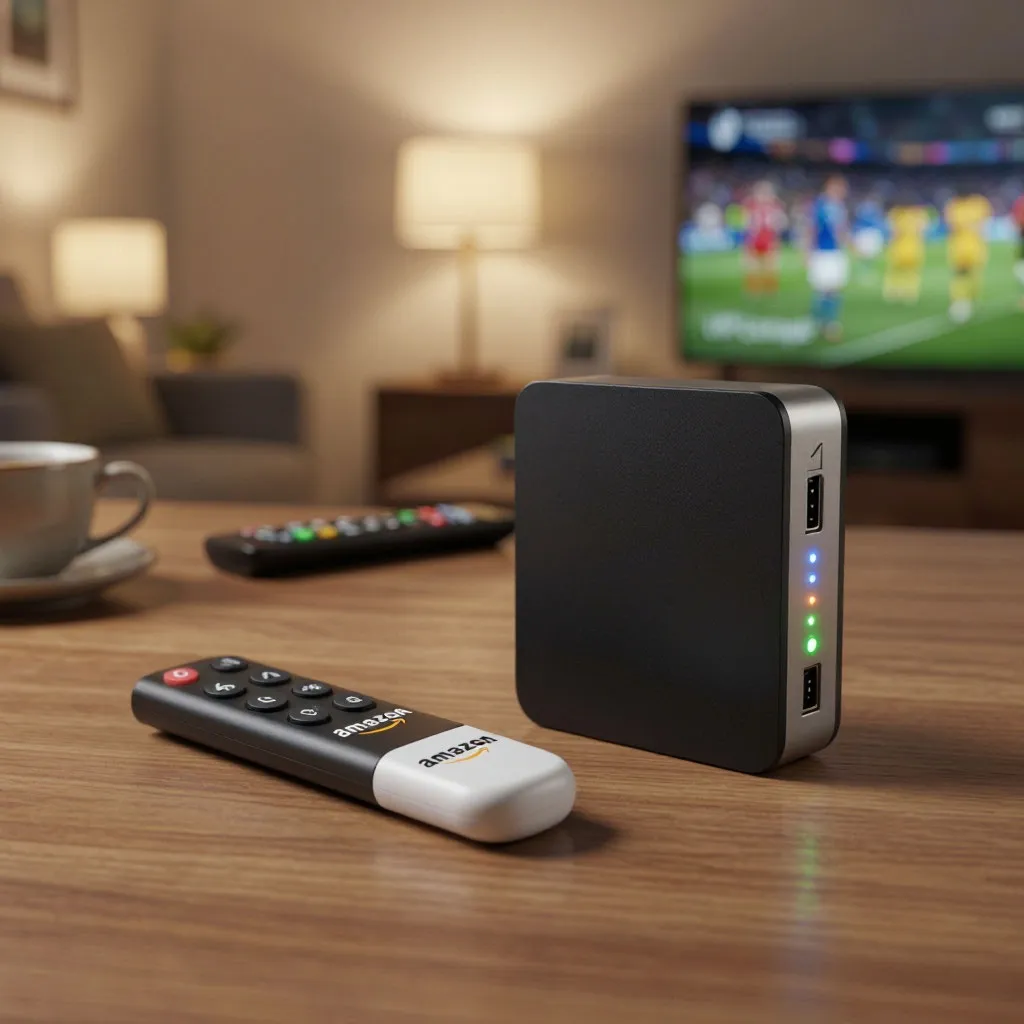
Watching the Champions League or a high-stakes UFC fight on a smartphone is convenient, but nothing beats the immersive experience of a large-screen television. As the 2026 sports season unfolds, more fans are looking for ways to bypass expensive cable subscriptions by using versatile streaming devices like the Amazon Firestick and various Android TV boxes (such as the Xiaomi Mi Box or Nvidia Shield). Because VIPLeague is a web-based platform, you don’t need to worry about complex “sideloading” or “jailbreaking” procedures. By using the right browser-based setup, you can turn your TV into a global sports hub in just a few minutes.
To get the most out of your hardware, it is important to choose a browser that is optimized for TV remote navigation. Traditional browsers like Chrome often struggle with remote interfaces, so selecting a dedicated TV browser is the first step toward a hassle-free experience:
| Method / Browser | Device Compatibility | Remote Optimization | Performance Rating |
|---|---|---|---|
| Amazon Silk Browser | Firestick / Fire TV | High | 9/10 |
| Puffin TV Browser | Android TV / Mi Box | High | 8/10 |
| TVBro | Open Source Android TV | Very High | 8/10 |
| Google Chrome | Android TV | Low (Needs Mouse) | 7/10 |
| Sideloaded Browser | All (Advanced) | Variable | 6/10 |
Choosing the Amazon Silk Browser for Firestick users or TVBro for Android TV users provides the best results because these apps are designed specifically to handle video playback on non-touch screens. They allow you to use the D-pad on your remote to navigate the VIPLeague menus easily, ensuring you don’t spend the first half of the game struggling to click the “play” button.
Step-by-Step Installation and Access Guide
The process for setting up your device involves using the built-in app store to download a compatible browser and then navigating directly to the platform. Unlike official apps that might be removed from stores due to licensing issues, the web-based approach ensures that you always have access to the latest links and schedules without needing to update your software constantly.
If you are setting up your Firestick or Android Box for the first time for live sports, follow these instructions to ensure a stable and secure connection:
- Open the App Store: Navigate to the “Find” or “Apps” section on your device’s home screen.
- Download a Browser: Search for “Silk Browser” (on Firestick) or “Puffin TV” (на Android TV) and install it.
- Enter the URL: Open the browser and type vip-league.com into the address bar using the on-screen keyboard.
- Bookmark the Site: Use the browser settings to add VIPLeague to your favorites for one-click access in the future.
- Select Your Sport: Navigate to your preferred category (Football, Basketball, UFC, etc.) and select the live event.
- Full Screen Mode: Once the video starts, click the “Full Screen” icon to remove the browser UI for a true TV experience.
Following these steps will bypass the need for any third-party APK files, making your setup much more secure and stable. By using a browser-based approach, you also benefit from the device’s native hardware acceleration, which helps in rendering HD video streams without stuttering or overheating your streaming stick.
Optimizing the Large-Screen Experience
Once you have established the connection, the final hurdle is ensuring the quality remains high throughout the entire event. Streaming sticks, especially older “Lite” versions, can sometimes struggle with 4K or high-bitrate Full HD streams if the network signal is weak. Because these devices are usually tucked behind the TV, they can suffer from signal interference, which leads to lower resolution or frequent buffering.
To prevent these issues, it is essential to match your streaming quality to your specific hardware capabilities and your local network speed:
| Device Model | Max Recommended Quality | Optimization Tip | Recommended Connection |
|---|---|---|---|
| Firestick Lite / Basic | 720p HD | Clear cache weekly | 2.4GHz Wi-Fi |
| Firestick 4K / Max | 1080p / 4K | Use 5GHz Wi-Fi band | 5GHz Wi-Fi |
| Android TV (Mi Box) | 1080p | Disable background apps | Ethernet (via adapter) |
| Nvidia Shield TV | 4K (Upscaled) | Enable AI Upscaling | Wired LAN |
Understanding your device’s limits ensures that you don’t push the hardware to the point of crashing during a live broadcast. If you are using a base-model Firestick, sticking to a 720p stream often provides a much smoother experience than trying to force 1080p, which can lead to the device becoming unresponsive.
Conclusion
Setting up VIPLeague on your Amazon Firestick or Android TV box is the most effective way to enjoy the world’s biggest sporting events for free in 2026. By choosing the right browser and following a structured setup, you eliminate the need for costly cable bundles while maintaining high-quality visuals. Remember to use a modern TV-optimized browser and always check your network signal strength before the game starts. With your big screen now fully equipped, you are ready to experience every goal, knockout, and touchdown in crystal-clear definition from the comfort of your couch.