
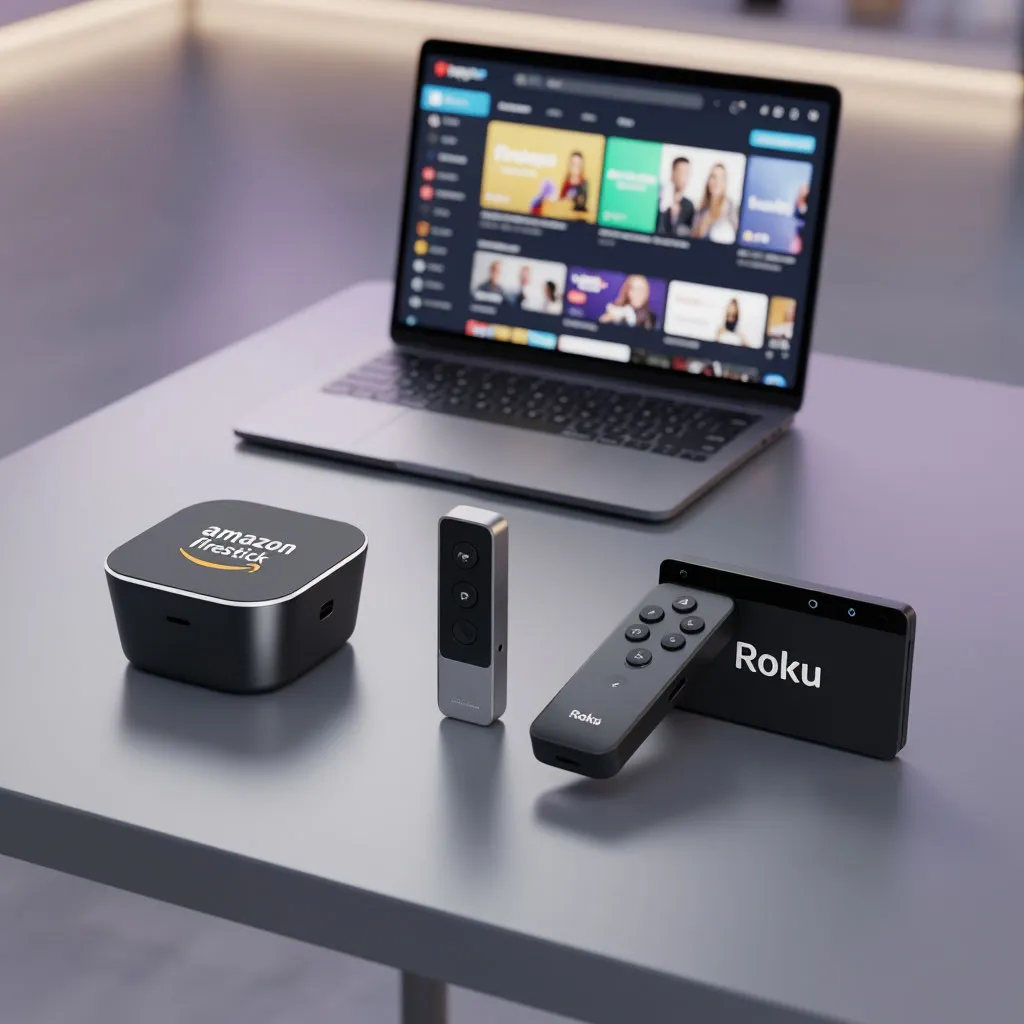
Watching live sports on a tiny smartphone screen or a laptop often kills the excitement of a high-stakes match. In 2026, the demand for a “stadium-like” experience at home has made streaming sticks like the Amazon Firestick and Roku more popular than ever. While VIPLeague is a web-based platform and doesn’t have a traditional app in official stores, you can easily bridge the gap between your television and your favorite sports streams with a few simple tweaks.
The transition from mobile viewing to the big screen requires understanding the technical differences between these devices. Firestick remains the favorite for enthusiasts due to its open Android-based architecture, whereas Roku requires a bit more creativity to display web-based content.
Firestick vs. Roku: Which is Better for Sports Streaming?
Choosing the right hardware is half the battle. If you haven’t bought a device yet, or if you own both, it is important to know which one offers the path of least resistance. Firestick allows for direct browsing and the installation of third-party tools, while Roku acts as a more “closed” system, focusing on official channels rather than open-web exploration.
To help you decide which device to use for your next game day, we have compared their core functionalities in relation to web-based streaming services.
| Feature | Amazon Firestick | Roku Devices |
|---|---|---|
| Operating System | Fire OS (Android-based) | Roku OS (Proprietary/Closed) |
| Native Web Browser | Yes (Amazon Silk) | No (Requires Screen Mirroring) |
| Sideloading Capability | High (via Downloader App) | Very Low / None |
| Navigation Ease | Remote + Mouse Toggle apps | Phone-based casting |
| Speed/Performance | Highly optimized for 4K | Stable but restricted |
As you can see, the Amazon Firestick is significantly more flexible for platforms like VIPLeague. It allows you to interact directly with the website through a dedicated browser, which is much more stable than trying to cast a screen from your phone. However, if you already own a Roku, don’t worry—you can still enjoy the action by using your mobile device as a bridge.
Setting Up VIPLeague on Firestick: A Step-by-Step Guide
The secret to a perfect experience on the Firestick is bypassing the limitations of the default interface. Instead of searching for an app that doesn’t exist, we use a process called sideloading streaming apps and utilizing the optimized Silk Browser. This method ensures that the stream remains stable and that you have control over the video player settings.
To get your Firestick ready for the next kickoff, follow these instructions to configure your device correctly:
- Enable Developer Options: Go to Settings > My Fire TV > About. Click on your Device Name seven times until it says “You are now a developer.”
- Allow Unknown Sources: Back in the “Developer Options” menu, ensure that “Install Unknown Apps” is turned on for the Downloader app.
- Install the Silk Browser: Search for “Silk” in the Amazon Appstore. This is the best browser for video playback on Fire OS.
- Use the Downloader App: If you want a dedicated shortcut, use the “Downloader” app to navigate to the VIPLeague official mirror.
- Configure Browser Settings: In the Silk Browser settings, make sure “Desktop Site” is disabled, as the mobile-optimized version of the site is easier to navigate with a remote.
- Bookmark the Site: Once you reach the VIPLeague homepage, save it to your favorites so you can access it instantly next time.
Following these steps transforms your Firestick into a powerful sports hub. The key is using the Silk Browser, as it is specifically designed by Amazon to handle video overlays and pop-up windows better than other third-party browsers you might find on the platform.
Troubleshooting Navigation and Remote Issues
One of the biggest frustrations when you watch sports on Roku or Firestick is trying to click the “Play” button. These websites are designed for mice and touchscreens, not a directional pad on a remote control. Users often find themselves stuck on a pop-up or unable to close an advertisement that is covering the video player.
If you encounter difficulties while navigating the interface with your remote, consult this troubleshooting table to find a quick solution.
| Problem | Potential Solution | Recommended Tool |
|---|---|---|
| Can’t click “Play” | Enable “Cursor Mode” or “Mouse Toggle” | Mouse Toggle for Fire TV App |
| Ads won’t close | Use the “Menu” button to refresh the page | AdGuard DNS (System Level) |
| Video is lagging | Clear browser cache and restart | Firestick “Clean” utility |
| Roku not casting | Ensure both devices are on 5GHz Wi-Fi | Roku Mobile App |
These minor technical hurdles are easy to overcome once you have the right setup. For Firestick users, installing the “Mouse Toggle” app is a game-changer, as it allows you to use your remote like a computer mouse to click small “X” buttons on ads. For Roku users, ensuring your phone and TV are on the same high-speed Wi-Fi band is the most important factor for a lag-free experience.
Final Thoughts on Big Screen Streaming
Watching VIPLeague on Firestick is undoubtedly the gold standard for free sports streaming in 2026. While the setup takes a few minutes, the payoff is a reliable, high-definition experience that beats a laptop every time. Remember to always use a VPN to protect your privacy and prevent your ISP from throttling your speeds during major events. With the right browser configuration and a few navigation tricks, your living room will feel like the front row of the stadium. Stay updated with the latest mirrors, keep your device cache clean, and enjoy the game!