
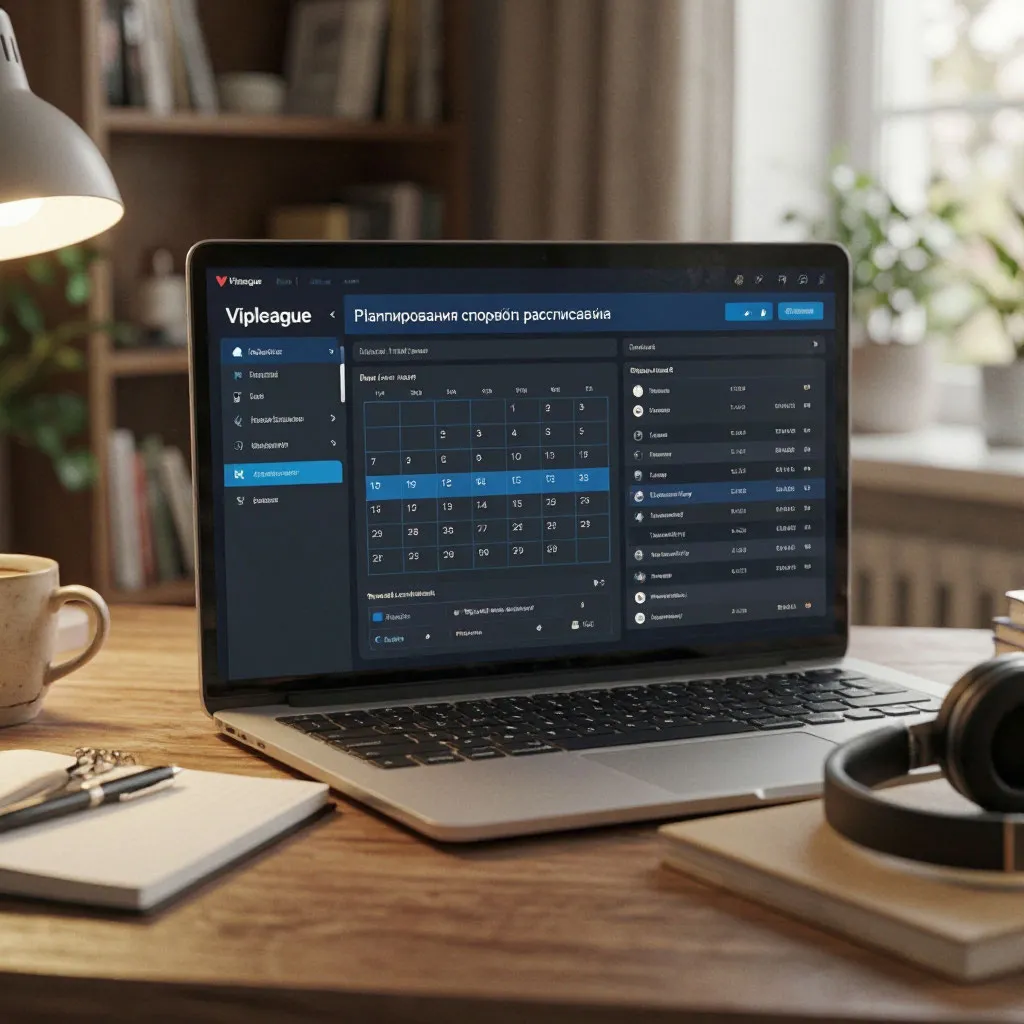
A typical weekend during football season can include a Premier League match at 12:30, a La Liga fixture at 15:00, a Bundesliga game at 17:30, and an evening Serie A clash — all on the same day. Add a UFC card on Saturday night, an F1 race on Sunday afternoon, and a Champions League match on Tuesday, and the week becomes a logistical puzzle. Most fans solve it reactively: they remember a match is starting when they see a social media post, scramble to find a stream, and arrive ten minutes after kick-off. The alternative — a structured viewing schedule — sounds rigid and joyless, but in practice it does the opposite. Knowing exactly when and what you are watching removes the anxiety of missing something and frees the rest of your time for everything else in your life.
VIPLeague does not offer a built-in scheduling tool, but it provides the raw material — live stream links and a daily event list — that you can combine with external calendar and note-taking tools to build a system that works for any level of fandom, from casual to obsessive.
Step 1: Identify Your Core Sports and Priority Tiers
Before building any schedule, define what actually matters to you. A fan who follows one football club has different scheduling needs from a fan who tracks four leagues across three sports. The first step is categorising your sports interest into tiers, which determines how much time you allocate and which events take precedence when fixtures overlap.
Defining Your Priority Tiers
Priority tiers are a personal framework, not a universal ranking. What counts as a must-watch for one fan — a local derby — may be irrelevant to another. The goal is to create a system that makes decisions for you in advance, so when two matches overlap on a Sunday afternoon, you already know which one takes priority and which one you will catch as highlights.
The following tier structure works for most fans and can be adjusted to fit individual preferences.
- Tier 1 — Must-watch live — Your team’s matches, knockout-stage fixtures in competitions you follow, title-deciding games, and major finals. These are non-negotiable viewing and take priority over everything else in your schedule. Plan work, social, and family commitments around these events.
- Tier 2 — Watch if time allows — High-quality matches involving teams you follow loosely, group-stage games in competitions you care about, and major events in secondary sports. You want to see these but will not rearrange your day for them. If they coincide with a Tier 1 event, you watch the highlights later.
- Tier 3 — Background or catch-up — Matches that are interesting in principle but not worth scheduling around. These get streamed on a second screen while you cook, work, or do household tasks, or they are skipped entirely and consumed through highlights and social media clips.
This three-tier framework gives every fixture a clear home, which prevents the paralysis of deciding in the moment whether a match is worth watching. When Sunday at 16:00 has three concurrent fixtures, the tier assignment has already been made, and the decision is automatic rather than emotional.
Step 2: Gather Fixture Information from Multiple Sources
VIPLeague’s event list shows what is available to stream on any given day, but it does not provide advance notice beyond the current and next day. Building a schedule for the week ahead requires pulling fixture data from league calendars and sports aggregators before cross-referencing with VIPLeague to confirm which events will have streams available.
Where to Find Reliable Fixture Data
League official calendars are the primary source for accurate fixture information. The Premier League website publishes fixture dates and kick-off times weeks in advance, with television broadcast selections confirmed 4–6 weeks before each matchweek. La Liga, Serie A, Bundesliga, and Ligue 1 follow similar patterns. For international competitions, UEFA publishes the Champions League and Europa League schedules at the start of each cycle, with individual match details confirmed in advance.
For multi-sport coverage, sports aggregators compile fixtures across leagues and disciplines into unified calendars. These platforms allow filtering by sport, competition, and date, which makes it easier to see all relevant fixtures in one view. The key is to identify 2–3 reliable sources and stick with them rather than cross-referencing a dozen different sites each week.
Cross-Referencing with VIPLeague Availability
Not every fixture on a league calendar will have a stream on VIPLeague. The platform’s coverage depends on which third-party sources are providing links for a given event, and this varies match by match. High-profile fixtures — Premier League, Champions League, major UFC cards — almost always have multiple stream sources. Lower-profile matches — a second-division fixture in a minor league — may have one source or none at all.
The practical approach is to assume that any Tier 1 event in a major league will be available on VIPLeague, as these events have the highest streaming coverage across all platforms. For Tier 2 and Tier 3 events, check VIPLeague’s event list on the day of the match — streams typically appear 30–60 minutes before kick-off. Building your schedule around confirmed Tier 1 fixtures and treating Tier 2 and Tier 3 as provisional additions that are confirmed on the day creates a system that is both structured and flexible.
Step 3: Build Your Weekly Schedule
With fixture data gathered and priority tiers assigned, the next step is transferring the information into a calendar or scheduling tool. The format you choose depends on how you prefer to organise information and what tools you already use.
Choosing the Right Tool
Each scheduling tool has strengths that suit different planning styles. The right choice is the one you will actually maintain — a sophisticated Notion database that you update once and abandon is worse than a simple paper list that you check every morning.
| Tool | Best For | Key Feature | Setup Time | Maintenance Effort |
|---|---|---|---|---|
| Google Calendar | Fans who want automatic reminders and cross-device sync | Push notifications before each match, colour-coded by tier | 10–15 min initial setup | Low — add fixtures as they are confirmed |
| Apple Calendar | iPhone users who want deep iOS integration | Siri reminders, lock-screen widgets, natural language input | 5–10 min initial setup | Low — synced across Apple devices |
| Notion | Fans who want a database with filtering by sport, tier, and week | Custom views, status tracking, match notes, and links | 20–30 min initial setup | Medium — requires manual updates |
| Excel / Google Sheets | Fans who want full control over layout and formulas | Conditional formatting, custom filters, printable weekly view | 15–20 min initial setup | Low — update once per week |
| Physical planner / notebook | Fans who prefer analog planning | No distractions, tactile, easy to glance at during the day | 5 min per week | Low — rewrite weekly |
The comparison shows a trade-off between setup complexity and ongoing convenience. Google Calendar and Apple Calendar offer the lowest maintenance burden because they handle reminders automatically — you add the event once and the tool does the rest. Notion and Excel provide more structure and filtering options but require manual updates each week. A physical planner is the simplest option but lacks reminders, which means you must build the habit of checking it daily.
Creating a Google Calendar System
Google Calendar is the most practical tool for sports scheduling because it is free, works on every device, and sends push notifications that function as match reminders. The setup is straightforward and takes about ten minutes to configure once, after which weekly maintenance is a matter of adding new fixtures as they are confirmed.
Open Google Calendar on a desktop browser — the web version provides more options than the mobile app for initial setup. Create three separate calendars by clicking the “+” next to “Other calendars” and selecting “Create new calendar.” Name them “Sports — Tier 1,” “Sports — Tier 2,” and “Sports — Tier 3.” Assign each calendar a distinct colour — red for Tier 1, blue for Tier 2, green for Tier 3. This colour coding creates an instant visual hierarchy when you look at your week, making it obvious at a glance which days have must-watch events and which have optional viewing.
For each fixture, create an event with the match title in the format “Team A vs Team B — Competition” (for example, “Man City vs Arsenal — Premier League”). Set the start time to the kick-off time and the end time to 105 minutes later for football (90 minutes plus stoppage time and half-time). For sports with variable duration — cricket, tennis, UFC — set a generous end time and adjust after the event. Enable a notification 15 minutes before the start time for Tier 1 events and 5 minutes for Tier 2 events. This gives you enough time to open VIPLeague, navigate to the correct stream, and resolve any buffering before kick-off.
Setting Up a Notion Sports Dashboard
Notion offers a more structured approach for fans who want to track not just when matches are happening but also their viewing status, notes, and stream availability. A Notion sports database can be built with the following properties: Match Title (title property), Date (date property with time), Sport (select property), Competition (select property), Priority Tier (select property with Tier 1, 2, 3 options), Stream Available (checkbox), Watched (checkbox), and Notes (text property for pre-match context or post-match thoughts).
Create three views for the database: a calendar view filtered by the current week, a board view grouped by Priority Tier, and a list view filtered to show only unwatched Tier 1 matches. The calendar view shows the week at a glance, the board view helps you see how many matches are in each tier, and the list view ensures you never miss a must-watch event. Add new fixtures to the database at the start of each week and check the “Stream Available” box once you have confirmed the event appears on VIPLeague.
Step 4: Manage Time Around Work and Study
The most common reason fans miss matches is not forgetfulness — it is the conflict between a 20:00 kick-off on a Tuesday and a work or study commitment the next morning. Midweek Champions League fixtures, late-night UFC cards, and afternoon cricket matches in different time zones all compete with the demands of daily life. A schedule that ignores these constraints is useless; one that accounts for them makes the viewing sustainable.
The 90-Minute Rule for Weekday Matches
A standard football match lasts approximately 105 minutes from kick-off to final whistle, including half-time and stoppage time. Add 10 minutes before kick-off for setup and 15 minutes after for processing the result, and the total time commitment is around 130 minutes. This means a 20:00 kick-off ends at 21:45, leaving enough time for a reasonable night’s sleep before a normal workday. A 21:00 kick-off ends at 22:45, which is still manageable. The problem begins with kick-offs at 22:00 or later — these end after midnight, and the next morning is compromised.
For matches that start after 21:00 on a weekday, the practical approach is to record the intent to watch and decide on the day based on energy levels and schedule flexibility. If you are a morning person who functions well on six hours of sleep, a 22:00 kick-off may be sustainable once a week. If you are not, the trade-off is not worth it — a single late match can affect productivity for the entire next day. The alternative is watching the first half live and catching the second half as a replay the next morning, which preserves the live experience for the most important 45 minutes and avoids the latest part of the evening.
Managing Time-Zone Differences
International events add a time-zone layer to the scheduling problem. An F1 race in Australia starts at 06:00 GMT, a UFC card in Las Vegas begins at 03:00 GMT, and an NFL game in the US kicks off at 21:00 or 00:30 GMT depending on the window. For fans following multiple sports across time zones, converting every fixture manually is error-prone and leads to missed events.
The solution is to set all calendar events in the source time zone and let the calendar app handle the conversion. Google Calendar and Apple Calendar both support per-event time zones — when you create an event, you can specify the time zone for that single event, and the calendar displays it in your local time automatically. This eliminates mental arithmetic and ensures the reminder fires at the correct local time. For events in extreme time zones — a 03:00 GMT UFC card, for example — decide in advance whether you will watch live or catch the replay, and set the calendar event accordingly. If you are watching the replay, set the event time to when you plan to watch (for example, 09:00 the next morning) rather than the live start time, so the reminder aligns with your actual viewing plan.
Step 5: Confirm Stream Availability on Match Day
The final step in the scheduling process happens on the day of the match. VIPLeague’s event list updates throughout the day, and stream links appear as the event approaches. Confirming that a stream is available before the match starts prevents the last-minute scramble that wastes the first ten minutes of the game.
A Match-Day Checklist
The following steps take less than five minutes and ensure you are ready to watch without technical delays.
- Check VIPLeague 60 minutes before kick-off — Navigate to the sport’s category tab and look for the event in the day’s list. If the event is listed with active stream links, note which source has the best quality indicator (VIPLeague typically labels sources as “HD,” “SD,” or with a bitrate number).
- Test the stream 15 minutes before kick-off — Click the stream link and let it load. If it buffers or fails, switch to an alternative source. Confirming this 15 minutes early gives you time to resolve buffering issues before the match starts.
- Set your phone to Do Not Disturb — Enable Do Not Disturb mode 5 minutes before kick-off for Tier 1 matches to prevent notifications from interrupting the viewing experience. Set it to expire at the expected match end time.
- Prepare your viewing environment — Close unnecessary browser tabs, connect your device to a charger if the battery is below 30%, and adjust the screen brightness and volume before kick-off rather than during the opening minutes.
Completing these steps before the match starts means you are watching from the first whistle rather than spending the first ten minutes troubleshooting. The 15-minute pre-match test is particularly important for VIPLeague, where stream quality and availability can change between the time you first check and the actual kick-off.
Building a Sustainable Habit
A sports viewing schedule only works if you maintain it, and maintenance is where most systems fail. The key to sustainability is minimising the weekly effort required to keep the schedule current. Set a fixed time each week — Sunday evening works well — to add the coming week’s fixtures to your calendar. This 15-minute ritual replaces the scattered, reactive checking that most fans do throughout the week and condenses it into a single focused session. Add only confirmed fixtures at this stage, and use the match-day checklist to handle last-minute additions and stream confirmation. Over a few weeks, this rhythm becomes automatic, and the schedule stops feeling like a chore and starts functioning as a tool that gives you more control over your time and your sport.