
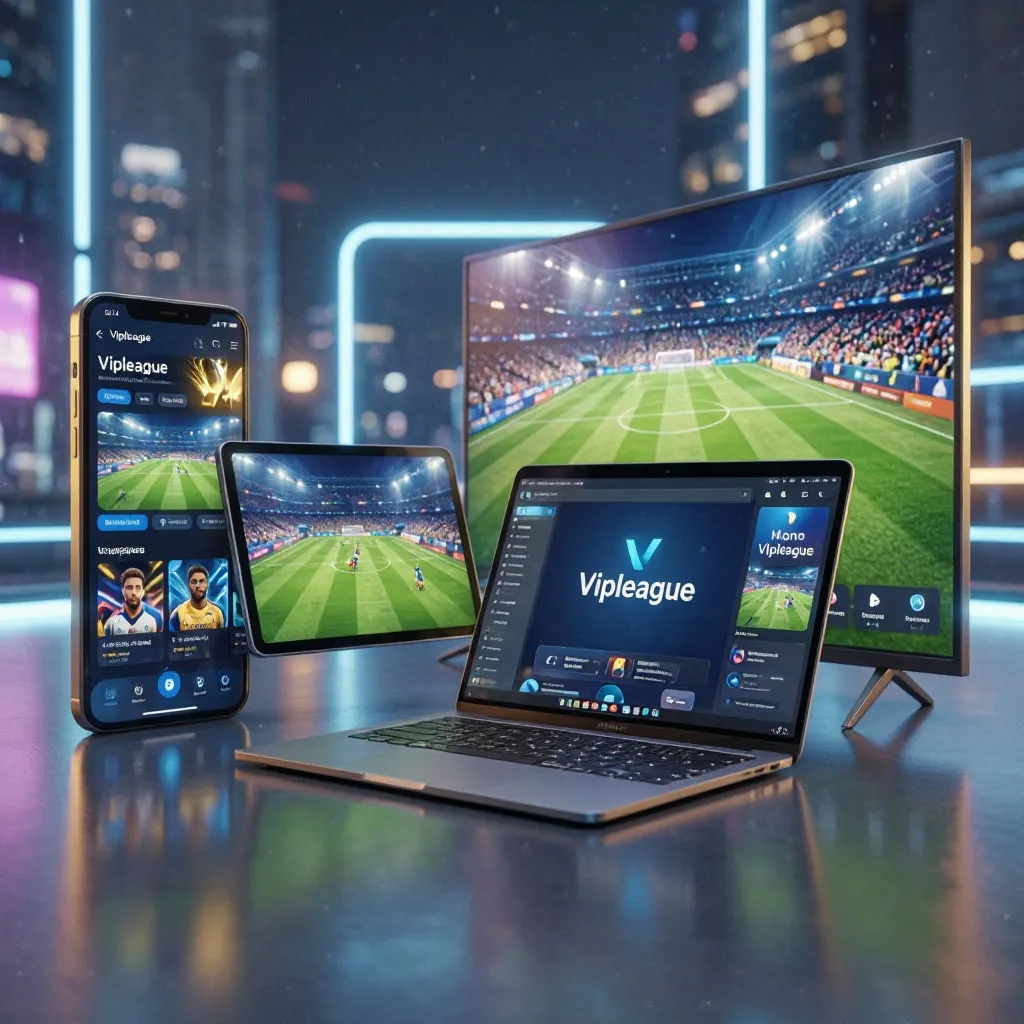
VIPLeague is a browser-based platform, which means every device with a modern web browser can theoretically access it. In practice, the gap between a stream that runs flawlessly for 90 minutes and one that stutters every thirty seconds often comes down to the hardware in your hands. Free streaming sources do not benefit from the adaptive bitrate infrastructure and dedicated content delivery networks that official platforms use, so the processing burden falls more heavily on the device itself. A phone with 2 GB of RAM may load the stream page but struggle to keep the video player running alongside background system processes. A Smart TV with an underpowered proprietary browser may render the page but fail to decode video at anything above 480p. Understanding which hardware characteristics matter — and which marketing labels do not — is the difference between a reliable viewing setup and one that fails during the decisive moments of a match.
The Three Hardware Factors That Determine Streaming Performance
Video streaming on a browser-based platform like VIPLeague places three distinct demands on a device. The processor must decode the video feed in real time, the RAM must hold the browser, the video player, and the operating system simultaneously, and the network adapter must maintain a stable connection throughout the stream. A weakness in any of these three areas creates a bottleneck that manifests as buffering, dropped frames, or complete playback failure.
The minimum viable specifications for smooth VIPLeague streaming are lower than most people assume. A device with a quad-core processor from 2019 or later, 3 GB of RAM, and a browser that supports hardware-accelerated video decoding can sustain a 720p stream without interruption. Devices below this threshold are not necessarily unusable, but they require compromises — lower stream quality, closed background apps, and shorter viewing sessions to avoid thermal throttling.
Smartphones: Budget vs Mid-Range vs Flagship
The smartphone is the most common device used for VIPLeague streaming, primarily because it is always within reach. But not all phones handle browser-based video equally well, and the price gap between a budget and a mid-range phone often translates directly into streaming performance.
What Matters in a Phone for VIPLeague
RAM is the single most important specification. A phone with 2 GB of RAM will struggle to keep the browser alive while the operating system manages background processes — messaging, email sync, location services. The operating system itself consumes 1.2–1.5 GB on modern Android versions, leaving little headroom for a browser tab running a video player. At 3 GB, the phone can maintain a stable stream with minimal background activity. At 4 GB or above, the stream runs comfortably even with several background apps open.
The processor matters less for resolution and more for thermal management. Video decoding is a sustained workload, and budget processors — the Snapdragon 4-series, MediaTek Helio G-series — generate more heat under sustained load than mid-range chips like the Snapdragon 6 or 7-series. After 45–60 minutes of continuous streaming, a budget phone may thermal-throttle, reducing clock speeds to lower temperatures, which causes frame drops and stutter. Mid-range processors handle the same workload with less heat buildup and can sustain performance for the full duration of a match.
The comparison below outlines how different phone tiers perform when streaming VIPLeague under realistic conditions.
| Phone Tier | RAM | Typical Processor | Max Stable Resolution | Thermal Behaviour After 60 min | Best Streaming Scenario |
|---|---|---|---|---|---|
| Budget (under £150) | 2–3 GB | Snapdragon 4-series / Helio G85 | 480p–720p | Noticeable warming, occasional frame drops | Short sessions, highlights, casual viewing |
| Mid-range (£150–£400) | 4–6 GB | Snapdragon 6/7-series / Dimensity 700 | 720p–1080p | Mild warming, stable performance | Full matches, regular weekly viewing |
| Flagship (£400+) | 6–12 GB | Snapdragon 8-series / A-series / Exynos flagship | 1080p (capped by source) | Minimal warming, consistent frames | Heavy use, multi-tab viewing while streaming |
| Older flagship (3+ years) | 4–6 GB | Previous-gen flagship chip | 720p–1080p | Moderate warming, battery drains faster | Good value option if battery health is above 80% |
The data shows that mid-range phones occupy the sweet spot for VIPLeague streaming. They deliver enough processing power and RAM to handle 720p–1080p streams without thermal issues, and their cost is a fraction of a current flagship. An older flagship — a Samsung Galaxy S20 or a OnePlus 8 — performs nearly as well as a new mid-range device, provided the battery retains at least 80% of its original capacity. Budget phones are usable but should be reserved for short viewing sessions or as a secondary device.
Tablets: The Travel Companion
Tablets fill a niche between the phone and the television. They offer a screen large enough to follow the action comfortably — typically 8 to 11 inches — while remaining portable enough for commutes, travel, or watching in a room without a TV. For VIPLeague specifically, tablets have one significant advantage over phones: the larger screen makes it easier to interact with the stream page, which often requires closing pop-up ads and selecting the correct player source before the stream begins.
Choosing a Tablet for Streaming
The hardware requirements for tablets mirror those for phones, but with one additional consideration: display resolution. A tablet with a 10-inch screen and a resolution of 1280×800 will display a 720p stream at its native resolution, which looks sharp. The same screen size at 1920×1200 will display a 1080p stream natively, which is noticeably crisper but requires more processing power to decode. For VIPLeague, where stream sources rarely exceed 1080p and often cap at 720p, a 1280×800 display is sufficient, and the lower resolution reduces the decoding workload, which in turn reduces heat and extends battery life.
Battery capacity matters more on a tablet than on a phone because tablets are often used away from a charger. A 7000 mAh battery will sustain approximately 4–5 hours of continuous 720p streaming on a mid-range tablet, which covers most matches including extra time and penalties. Tablets with 5000 mAh batteries or less may need to be plugged in for matches that run longer than two hours, which can cause the device to heat up faster due to simultaneous charging and streaming.
iPad vs Android Tablet for VIPLeague
Both iPadOS and Android handle browser-based streaming well, but there are practical differences. Safari on iPad has excellent hardware acceleration and power efficiency — an iPad Air or even an older iPad 9th generation will stream for 6–7 hours on a single charge with minimal heat. However, Safari’s handling of pop-up windows and redirects — which VIPLeague relies on for its ad-supported model — is more restrictive, and some stream sources may not load correctly without adjusting Safari’s pop-up blocker settings.
Android tablets, particularly those running Chrome, handle pop-ups and redirects more flexibly, which makes navigating VIPLeague’s stream selection process smoother. The trade-off is that budget Android tablets — those under £200 — often use processors and displays that are inferior to equivalently priced iPads, resulting in lower stream quality and faster battery drain. The Samsung Galaxy Tab A series and Lenovo Tab series are the strongest Android options in the budget-to-mid-range category, offering 3–4 GB of RAM and processors capable of sustained 720p decoding.
Smart TVs: Built-In Browsers and Their Limitations
Smart TVs are the natural choice for watching sports at home — the largest screen, the best audio, and the most comfortable viewing position. But Smart TVs are also the device category with the widest performance variation, and the built-in browser is often the weakest component of the entire television.
Why Smart TV Browsers Struggle with VIPLeague
Most Smart TV browsers are not full-featured browsers in the way Chrome or Firefox are. Samsung’s Tizen browser, LG’s WebOS browser, and the browsers built into Hisense and TCL TVs running VIDAA or Roku OS are lightweight engines designed for basic web browsing and occasional video playback. They typically lack hardware-accelerated video decoding, have limited JavaScript performance, and receive infrequent updates. A 2024 Samsung TV will stream VIPLeague acceptably at 720p, but a 2019 budget TV from the same manufacturer may fail to load the video player at all or display a black screen where the stream should be.
The hardware inside budget Smart TVs is another limiting factor. Many televisions in the £250–£400 range ship with 1 GB of RAM and a dual-core processor — specifications that fall below the minimum viable threshold for browser-based streaming. The TV may display a beautiful 4K picture from an HDMI source, but its internal processing power is a fraction of what a budget smartphone offers. This is why a TV that cost £300 five years ago may perform worse at streaming VIPLeague than a phone that cost £150 today.
The following steps describe how to set up VIPLeague on a Smart TV using the built-in browser, including workarounds for common limitations.
- Open the browser and navigate to VIPLeague — On Samsung TVs, press the Home button, select the browser app, and enter the URL. On LG TVs, use the WebOS browser from the app launcher. Ensure the browser is updated to the latest available version through the TV’s system settings.
- Enable pop-ups and disable tracking protection — Smart TV browsers often block pop-ups by default, which can prevent the stream source from loading. In the browser settings, disable the pop-up blocker for the VIPLeague session. Re-enable it after viewing to maintain security.
- Select the lowest available stream quality first — Start with 480p to confirm the stream loads and plays. If the stream is stable after two minutes, increase to 720p. Starting at the highest quality on an underpowered TV browser often results in a black screen or immediate buffering.
- Close all other apps — Smart TVs run background apps that consume RAM — streaming services, news tickers, screen mirroring. Force-close these through the TV’s app manager before starting the stream to free memory for the browser.
- If the stream fails, use the casting workaround — If the built-in browser cannot load the stream, open VIPLeague on your phone instead and cast the browser tab to the TV. This bypasses the TV’s browser entirely and uses the phone’s processor for decoding while the TV acts as a display only.
Following these steps resolves the majority of Smart TV streaming issues without requiring additional hardware. The casting workaround in particular is a reliable fallback that turns any TV with a built-in casting receiver — or any TV connected to a Chromecast — into a display for a phone-based stream, sidestepping the browser limitations entirely.
Streaming Sticks and Boxes: The Best Upgrade for Older TVs
For viewers with an older Smart TV whose browser cannot handle VIPLeague, or for those with a non-smart TV that has no browser at all, a streaming stick or box is the most cost-effective solution. These devices connect to the TV via HDMI and run a full operating system — Android TV, Google TV, or Fire OS — with a dedicated browser and significantly more processing power than most built-in TV platforms.
Chromecast with Google TV
The Chromecast with Google TV (4K model, approximately £30–£40) is the strongest option for VIPLeague. It runs Google TV, which includes the Chrome browser, and its quad-core processor and 2 GB of RAM handle 1080p streams without issue. The device supports 4K output, but since VIPLeague streams rarely exceed 1080p, the real benefit is the smooth browser performance and the ability to cast from a phone if the on-TV browser experience is preferred. Setup takes five minutes: plug into HDMI, connect to Wi-Fi, open Chrome, and navigate to VIPLeague.
Amazon Fire TV Stick
The Fire TV Stick 4K (approximately £40–£50) runs Fire OS, which is based on Android but uses Amazon’s Silk browser rather than Chrome. Silk handles browser-based video competently but is less reliable than Chrome for sites with complex ad structures like VIPLeague. The Fire Stick’s 1.5 GB of RAM is adequate for streaming but can struggle if background apps are running. The device excels when used with the casting method — streaming from a phone’s Firefox or Silk browser to the Fire Stick avoids the on-device browser’s limitations while delivering the stream to the TV.
Android TV Boxes
Standalone Android TV boxes — such as the Nvidia Shield TV or the Xiaomi Mi Box — offer the most powerful streaming experience in this category. The Shield TV, in particular, has 3 GB of RAM and a processor that outperforms most Smart TVs, and it runs the full Chrome browser with hardware acceleration. These boxes are more expensive than sticks (£50–£150) but provide the most future-proof solution, handling not only VIPLeague but any browser-based streaming platform with headroom to spare. For a household that watches sports regularly on an older TV, an Android TV box is the single upgrade with the highest return on investment.
Gaming Consoles: PlayStation and Xbox as Streaming Devices
PlayStation 5, Xbox Series X/S, and older consoles like the PS4 and Xbox One all include built-in web browsers capable of accessing VIPLeague. Consoles have powerful processors and ample RAM, which means decoding a 1080p stream is trivial — the hardware was designed for far more demanding workloads. The limitation is not performance but usability: console browsers are not optimised for navigating ad-heavy websites, and using a controller to click through pop-ups and select stream sources is cumbersome compared to a touchscreen or mouse.
The Xbox Series X/S and PS5 both support USB keyboard and mouse input, which dramatically improves the browsing experience. Connecting a wireless keyboard with a trackpad — such as a Logitech K400 — turns a console into a functional streaming station with the navigation precision of a desktop. The PS4 and Xbox One are also capable of streaming VIPLeague, but their older browsers receive no further updates, which means compatibility with newer video player technologies is not guaranteed.
Console Streaming Considerations
The main drawback of using a console for VIPLeague is power consumption. A PlayStation 5 draws approximately 200 watts while in use, compared to 5 watts for a Chromecast or 2 watts for a streaming stick. For a three-hour match, the PS5 consumes roughly 0.6 kWh — not a significant cost per session, but noticeably higher than dedicated streaming devices over a season of regular viewing. Consoles also run their cooling fans during use, which adds ambient noise that may be noticeable during quieter moments of a broadcast. For viewers who already own a console connected to their primary TV, it is a perfectly viable option. For viewers choosing a device specifically for streaming, a £30 Chromecast delivers the same viewing experience with a fraction of the power consumption and no fan noise.
Thermal Performance and Long Sessions
Free streaming sources place a sustained decoding load on device processors that official streaming apps — which are optimised for specific hardware — do not. This means devices run warmer and consume more power when streaming VIPLeague through a browser than when running a dedicated app like Sky Sports or Netflix. Understanding how different devices handle this sustained load helps avoid performance degradation during long matches.
Budget phones and tablets are the most susceptible to thermal throttling. A device that streams smoothly for the first half of a match may begin stuttering in the second half as the processor heats up and reduces its clock speed. This is not a sign of a faulty device — it is a designed protective mechanism. The workaround is passive cooling: removing the phone case, placing the device on a hard surface rather than a soft one, and avoiding charging while streaming. Mid-range and flagship devices have larger thermal mass and more efficient processors, which means they reach lower peak temperatures under the same workload and rarely throttle during a standard match duration.
Streaming sticks and boxes handle heat better than phones because they are designed for sustained video playback. However, sticks that plug directly into an HDMI port behind a TV — where airflow is restricted and heat from the TV’s own components is present — can run surprisingly warm. A stick that overheats will not throttle as dramatically as a phone, but it may reboot unexpectedly. Using an HDMI extender cable to position the stick away from the TV’s heat zone is a simple and effective fix that costs under £5.
Recommended Setup Configurations
Different viewing scenarios call for different device combinations. The right setup depends on where you watch, how often, and what hardware you already own.
The following configurations cover the most common viewing patterns and the devices best suited to each.
- Living room, regular viewing — A Smart TV with a Chromecast with Google TV connected. Use the TV’s built-in browser for quick access, and fall back to casting from a phone if the TV browser struggles. Total additional cost: £30–£40.
- Bedroom or second TV, occasional viewing — An older TV with an Amazon Fire TV Stick 4K. Cast from a phone for the best experience, or use the Silk browser for direct access. Total additional cost: £40–£50.
- Travel and commuting — A mid-range Android tablet with 4 GB of RAM and a 1280×800 display, or an iPad 9th generation. Both provide 4–6 hours of streaming on a single charge with a screen large enough to follow the action comfortably.
- Budget setup, no existing smart device — A £150 mid-range phone connected to any TV via a £5 USB-C to HDMI adapter (if the phone supports video output) or a £30 Chromecast. The phone handles decoding; the TV acts as a display. Total cost: £155–£180.
- Premium home setup — An Nvidia Shield TV Pro connected to a 4K television, with a wireless keyboard for navigation. This configuration handles any browser-based stream at maximum available quality with no thermal concerns and is future-proof for years.
Each configuration prioritises a different balance of cost, convenience, and performance, but they share a common principle: the decoding work should be done by the device best suited to sustained video processing, and the display should simply show the result. When the TV’s own hardware cannot handle the decoding, shifting that task to a phone, stick, or box — and using the TV as a display only — eliminates the performance problems that plague built-in Smart TV browsers.